Claude Code status lines that actually matter
Stop guessing what Claude is doing with your tokens

Yesterday afternoon, I found myself staring at my terminal for what felt like the hundredth time, squinting at the default Claude Code prompt. I was trying to figure out if I was burning through my token budget too fast on a refactoring experiment. The answer? Buried somewhere in verbose output I’d need to scroll back through.
I think it was around 3 PM when I finally had enough. There had to be a better way.
If you’ve spent any time with Claude Code, you know the feeling. It’s a powerful tool; the AI assistance is genuinely transformative. But the default interface treats you like you’re operating in a vacuum. How much context am I using? Which model am I even talking to right now? What’s my git branch? These aren’t luxury questions when you’re context-switching between three projects and trying to stay under budget.
Enter ccstatusline. I’d seen it mentioned in the Claude Code community, tried it once months ago with the default settings, and... promptly forgot about it. Big mistake.
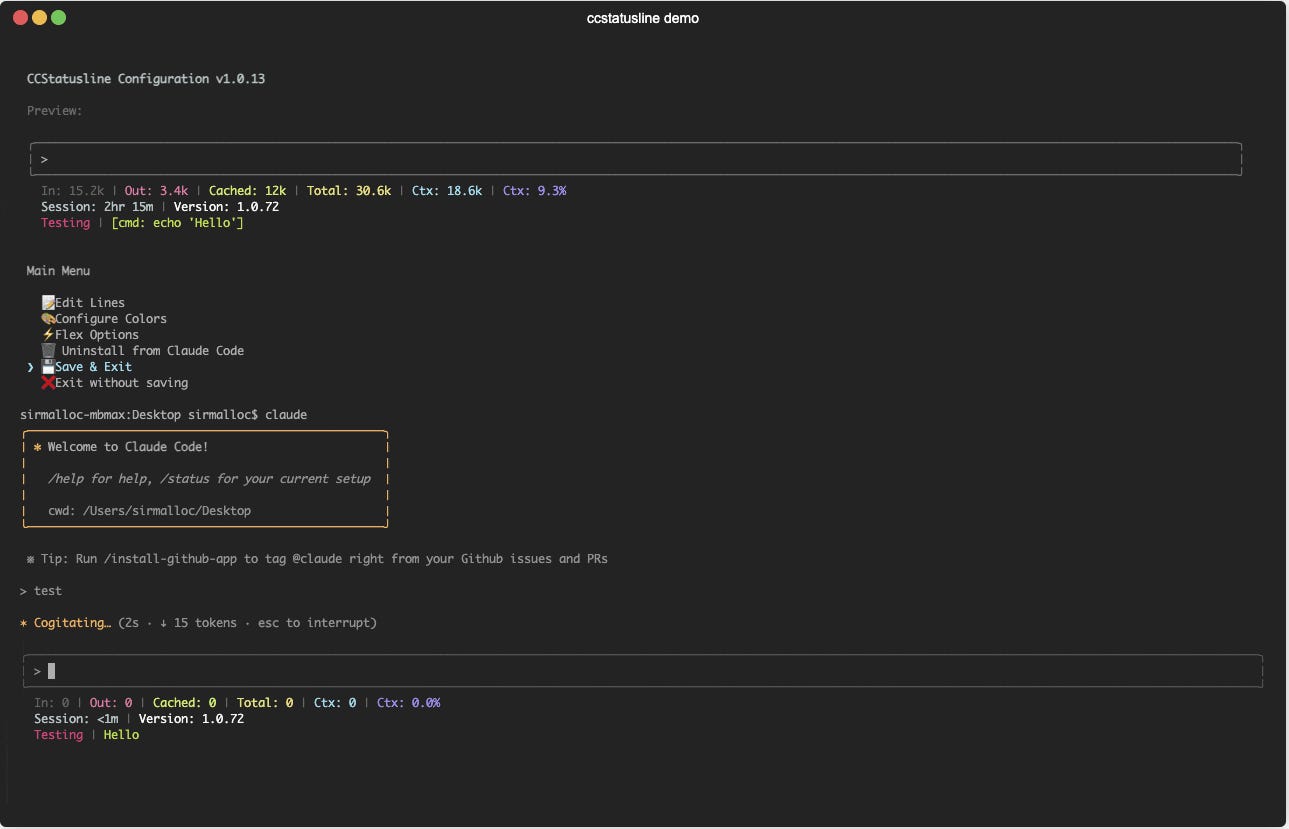
What ccstatusline actually does (and why you should care)
At its core, ccstatusline is a highly customizable status line formatter for Claude Code CLI. Think of it as your terminal’s heads-up display. Instead of guessing whether you’re about to hit your context window limit or wondering which branch you’re accidentally committing to, the information you need lives right there in your status line.
The project, maintained by sirmalloc on GitHub, supports everything from basic git branch display to real-time token usage metrics, session cost tracking, and custom command output. It works across platforms (with specific optimizations for Windows), runs on both Node.js and Bun, and requires zero global package installation.
But here’s what surprised me: the real value isn’t in the features list. It’s in how it changes your relationship with Claude Code. You stop context-switching to check things; the answers are just... there. It’s a small shift that compounds throughout your day.
My configuration (after too much tinkering)
I’ll be honest. I spent way more time than I should have configuring this. The good news? You can learn from my experimentation. Here’s what I landed on after testing various layouts:
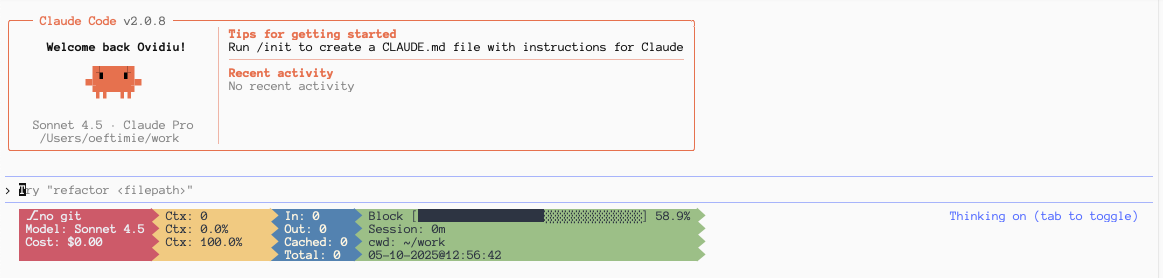
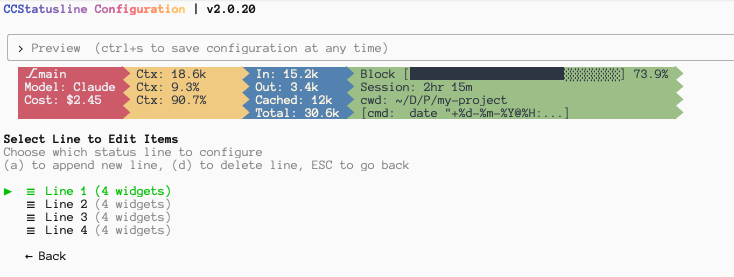
Line 1: The Context awareness layer
Git branch (cyan) because I switch branches constantly and have definitely committed to the wrong one before
Context length (magenta) showing how much of Claude’s memory I’m using
Input tokens as a progress indicator
Block timer (also progress style) so I know how long each interaction takes
Line 2: The model and budget layer
Model name with bright cyan background (I work with multiple models; knowing which one I’m talking to matters)
Context percentage (how close am I to the limit?)
Output tokens with red background and inverse colors (high visibility for the metric that costs money)
Session clock tracking how long I’ve been in this session
Line 3: The financial reality check
Session cost with inverse colors (because forgetting about costs is easy)
Another context percentage view (yes, I’m paranoid about context limits)
Cached tokens display with bright red background
Current working directory in fish-style abbreviated format (bright green background)
Line 4: The visual separator
Custom colored blocks (yellow and red) for visual rhythm
Total tokens (yellow background)
Current timestamp via custom command (bright magenta) because sometimes you lose track of time when you’re deep in a problem
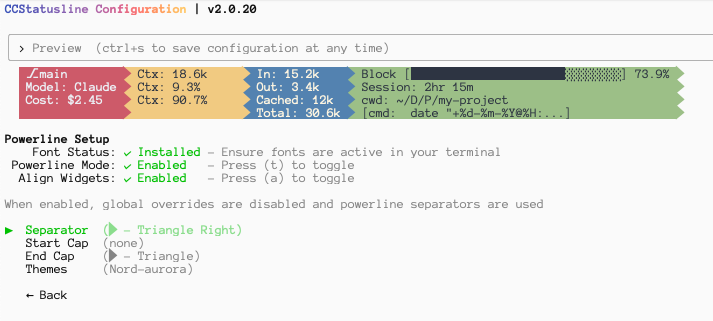
I use Powerline mode with Nord Aurora theme, auto-alignment enabled, and arrows as separators. The compact threshold kicks in at 60 characters, which handles smaller terminal windows gracefully.
Why this setup works (for me, anyway)
The key insight here isn’t that this is the “perfect” configuration. It’s that different information matters at different moments, and having it all accessible changes how you work.
When I’m exploring a new codebase with Claude, context percentage becomes critical. I need to know when I’m approaching limits before I hit them. When I’m doing repetitive refactoring, the block timer helps me notice when something’s taking unusually long (usually a sign I’ve asked an ambiguous question). When I’m prototyping between my wife’s callouts for weekend chores, that session cost display is... uncomfortable, but necessary.
The multi-line layout means I’m never choosing between metrics. Terminal real estate is cheap; context-switching to check something isn’t.
Locking to a specific version (the part I wish I’d known earlier)
Here’s where I made a rookie mistake initially. I’d run `npx ccstatusline@latest` to set things up, spend 20 minutes configuring everything perfectly, then come back a week later to find things behaving differently after an update.
The solution is simpler than I expected. Instead of using `@latest`, lock to a specific version, or install it globally
npx ccstatusline@2.0.20

or to install globally

npm install -g ccstatusline
Or if you’re using Bun:
bunx ccstatusline@2.0.20Replace `2.0.20` with whatever the current stable version is when you’re reading this. The point isn’t to stay on an old version forever; it’s to update deliberately rather than accidentally.
If you want to check what version you’re currently using, the settings file lives at `~/.config/ccstatusline/settings.json`.
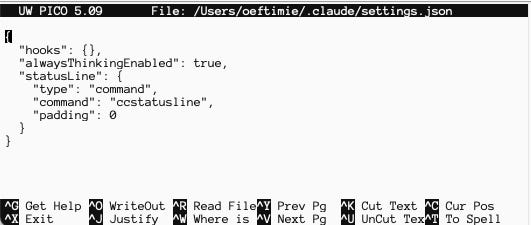
While you’re there, you might notice the configuration format is quite readable. Mine’s a 230-line JSON file that I’ve started keeping under version control (in a dotfiles repo), which means my setup follows me across machines.
When you do want to update, you’re making a conscious choice. You can review the changelog, test the new version, and know that your carefully crafted status line won’t suddenly rearrange itself mid-project.
The Interactive configuration experience
One thing I haven’t mentioned yet: ccstatusline includes a Terminal User Interface (TUI) for configuration. Run it without the config file, and you get an interactive wizard. It’s genuinely well-designed althought it takes a bit to realize that each of the options has actually additional options not available for others. Play a little bit with it it’s worth it.
What I’m still figuring out
I don’t have data on this specifically, but I wonder about the performance impact. Four status lines with custom commands executing on every prompt update... it feels like it should add latency. Yet I haven’t noticed any. Either the implementation is very efficient, or I’m just not sensitive enough to microsecond delays. Probably both.
I’m also still experimenting with the custom command widget. Right now I’m using it to display timestamps, but there’s potential for so much more: showing Docker container status, displaying the last git commit message, pulling in external metrics. The widget executes arbitrary shell commands; the limit is your imagination (and your tolerance for status line clutter).
If you’re going to try this
Start simple. A single line with git branch, model name, and context percentage will immediately improve your Claude Code experience. You can always add more later.
Lock to a specific version from day one. Trust me on this.
And resist the urge to add every possible widget. Information density has diminishing returns. When everything is highlighted, nothing is.
The configuration I showed you took weeks to settle into; yours should evolve to match how you actually work, not how you think you should work.
Give it a weekend. See if you stop scrolling back through terminal output to find basic information. See if you stop accidentally burning through context on tangential questions because you can see the meter climbing.
For me, at least, it’s made Claude Code feel less like a black box and more like a partner that actually communicates what’s happening.
Now that you can see the status of your AI pair programmer, maybe you’ll stop making the same mistakes I did. Or you’ll make entirely new, more interesting mistakes. Either way, you’ll know exactly what’s happening while you make them.
Current ccstatusline version as of this writing: 2.0.20. Lock deliberately, update intentionally.